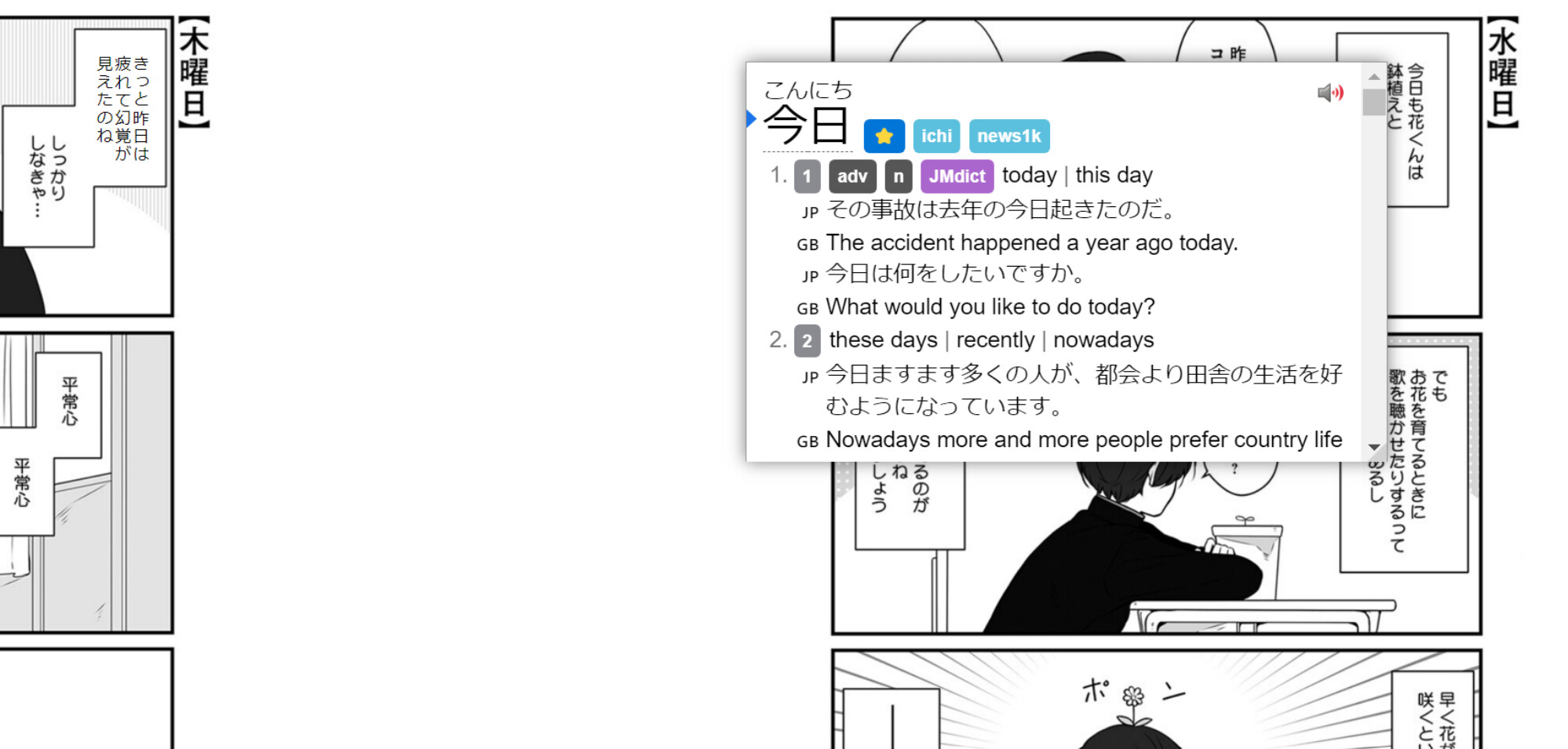
I’ve been working on a new mokuro bookshelf that lets you have multiple users, keeps track of where all the users are, and allows for certain users to upload volumes. Heavily Inspired by ChristopherFritz’s awesome bookshelf, but better for sharing with friends. Unlike localstorage-based readers, this one stores volume images and json on the server.
thanks so much, I also reached out to the author of this guide and they have updated it with similar information.
The issue I’ve got now is that the naming of the files coming out of my extraction process means that when they’re put into the zip for the web reader, they’re not it order. Easily fixable with a bit of renaming I think, just have to rerun mokuro.
i think it’s important that the image zip file is flat i.e. no embedded directories, and that the images are in a sensible order
So other gotchas - the name of the zip file and the .mokuro file must be the same
It’s not easy to do, because of some security features in android. You’d need to host the files either from a local server, or on an actual server that is accessible for you.
Use the beta mokuro that generates the .mokuro file only and https://reader.mokuro.app/. (Like ttsu but for mokuro manga)
Or the Jidoujisho app with the regular mokuro that makes .html files (or the fork that makes mobile.html files for nice swipe support).
I use the Jidoujisho app on my Samsung tablet, but I’ve tested out the reader.mokuro.app as well. Never used a Fire, it’s Amazon right? Does it still use Android OS?
I use the same dictionaries for both, so I can’t say I notice a difference. If there’s a difference in parsers I haven’t noticed any issues with Jidoujisho.
I use Jidoujisho partly because the beta mokuro and it’s reader didn’t exist and I wanted to read my manga on my tablet, it was the most straightforward way at the time.
That site falls squarely into the category of copyright infringement (putting entire volumes of manga online for anyone to read without buying them from the publisher or a licensed seller), so you may be limited on the information you can get on the site from the forums here.
I will note that the site, to my knowledge, did not include any contact information.
@ChristopherFritz been mostly lazy and haven’t wanted to mess around with this though would like to make reading somewhat less of a chore.
First off my ebooks are on bookwalker (but you know I generally buy paper). But I decided to see about testing this a bit. So far only on first test but - was able to use the ss sim js to create the pngs.
But cannot set lt novels to “vertical” mode. Not sure where to ask this but figured I’d start here and see is there a way to use the ss sim js to do that with those books or somehow do this (or a better/another way)
Of course I could buy the books a 3rd time, already have a paper then paid for digital for portable on a trip, but the s#%$@# drm so even if I go to kobo or something still have to deal with drm madness. Anyhow not a lot of point in buying another copy if I already paid for 2. If I should post this elsewhere different/thread etc let me know.
Will see about getting python and other stuff going and test out that one manga tonight or tomorrow.
Couldn’t you resize the window, so only one page is shown?
DRM are usually way easier to deal with then people think. The calibre extension for it that I don’t think I can name does its magic the moment you import a book into that program. And you would have to do that either way to turn the book into images. (Or, if you are one to automate, the cli tool for calibre also runs the conversion automatically).
Of course I can manually take screenshots but the ss sim js script requires vertical format for automation. I’m not a programmer so figured Chris would know.
Stripping drm from bw don’t know how to do and can’t really ask here. I know koto and other ways but in any case my question is can the js script be somehow used to take snaps of lt novels from bw (where there’s no vertical option)
We’ve discussed it a few times around the forum, always in hiding tags so now I’m having trouble finding them again
But basically for novels, we don’t use Mokuro or don’t buy on Bookwalker but on Rakuten (usually they follow the same sales).
Then you have to figure out how to get the book on your PC, part of it is described here
When the process is successful, you end up with an epub that you can read in ttsu reader with Yomichan, you can even use the text to make JPBD decks. I do the process for all my novels, so if you try and get stuck and can’t find help in existing posts I’ll be happy to guide you
Was hoping with bw could just somehow make the js script scroll right and then take the screen shot and then click right again through the pages, seems like not an unreasonable thing to go through a similar process but I’m not a programmer
figured it could work if i took manual screen shots (but that’s insanely time intensive)
now if i can figure out how to get mokuro to actually run properly happy joy
did finally think get everything setup, paths happy and what not but now it doesn’t wanna find my test manga (already read it and actually own that one physically too)
im getting too old and don’t have the patience to tinker with this stuff anymore
edit:
thanks @taiyousea stupid wrong python version shees why so stupid hard
I legit paid 2x for this book!
yeah I did have some success yesterday (also did send a friend req on discord)
I did use your js script (in vertical) and it worked fine and fast!
was the only part that went smoothly TBH
but the manga part I think I got working late last night at 2am or whatever it was
PROOF
had to install yomitan though (new computer)
I’ll probably run through my other manga that I have as well, it’s all stuff I own paper copies of anyway but if it’s working might as well. Next process is to convert this HTML to ePub or pdf that will work with yomitan.
but would be nice to be able to do this with some of the novels though @taiyousea has helped me out with some of the issues with the novel I was trying to get into epub
Not sure how to do it but a script that could click the right arrow (somehow) and then take a screen shot of the shosetu page and do it again until the pages were all captured for the shosetu would probably work. Less important now but I am going to test out the mokuro script on a single screen shot of the book to see how it handles the ocr.