While on the Reviews page, open the Javascript console (press F12 and click on the Console tab), and post any errors you see there.

Hmm… Usually, there would be some errors that help point toward what’s wrong, but none of the errors in your screenshot are related to scripts. (They’re just normal Wanikani-related stuff.)
And you aren’t seeing a gear icon in the top-left corner of the Reviews screen? (Also, it don’t think Double-Check runs on the Lessons quiz. It’s only on the Reviews quiz. Just in case there was some confusion.)
1 Like
All correct. I have been looking in the reviews screen specifically. Nothing in the top left corner. Any other thoughts? I’ve tried on two computers now, a mac and a pc, just in case that was the issue. Not seeing anything on either 
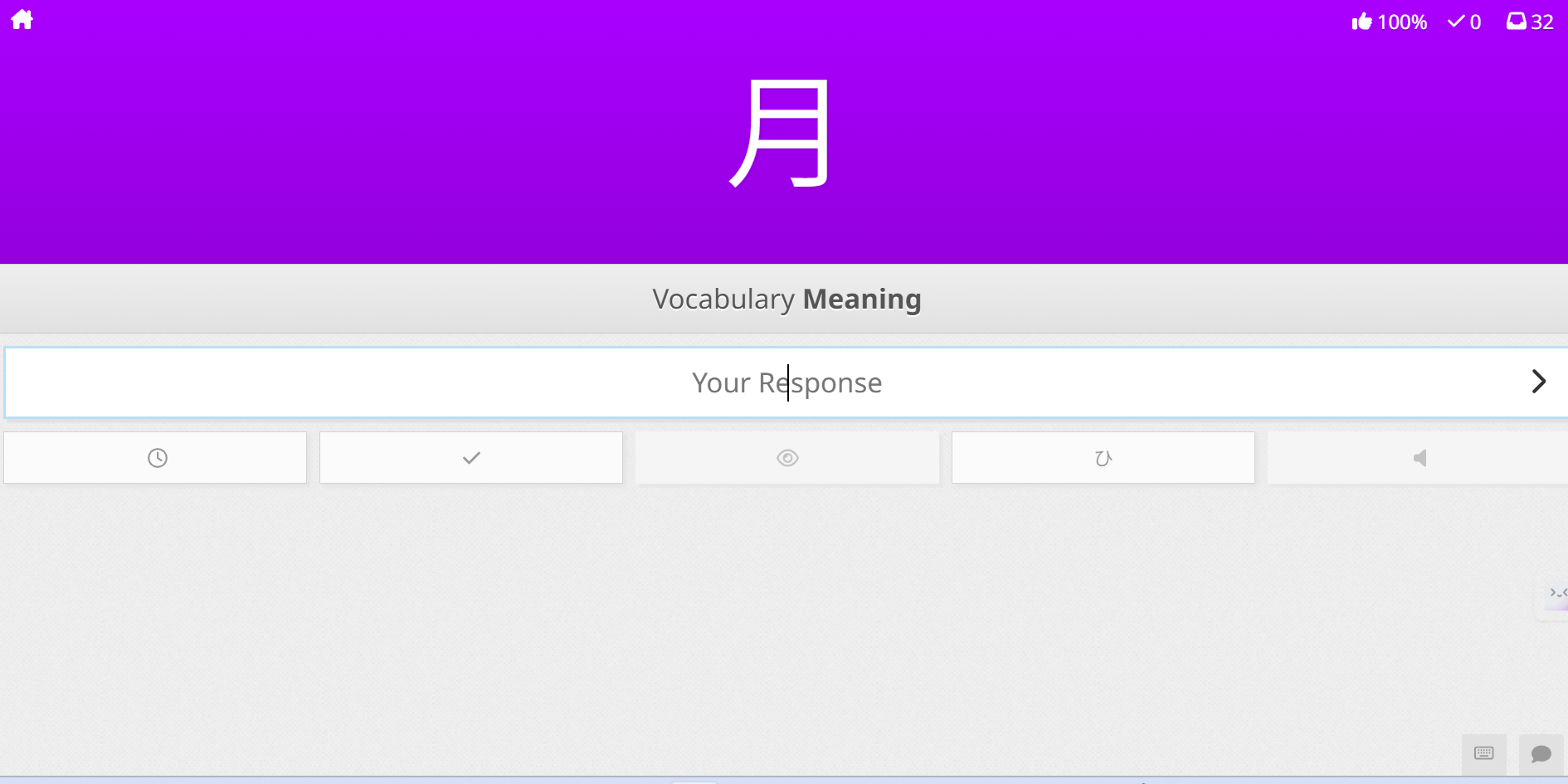
ok, I figured it out!!! Thank you!!
I had allowed developers mode, both in Chrome and in the app, but I also needed to allow user scripts, and this was off. Again, this is all new to me, I whole world to discver I guess…
Thanks for your support.

Interesting, it looks like that setting was just added in the most recent version of Chrome. I’ll add that to the instructions.
1 Like
Interesting. And I had just updated my chrome!
Are you an employee of Wanikani or just a pro user?
I’ve done some contract work for Wanikani in the past, but I’m mainly just a long-time user (since 2014) who wanted to improve the WK experience for myself and others via userscripts. I finished WK around 2016, but stuck around for the community. Lately, I’m only here when I get notifications about posts on my script-related threads, and I occasionally fix one or two of the most useful scripts when something changes on WK that breaks them.
1 Like
Wow. I think Wanikani is both amazing and overwhelming. It’s an incredible tool and I’m enjoying learning, but it sure take up a lot of mental space as well! I’ve seen many posts on the topic, and am happy to have installed double check for typos. Are there any other scripts that were transformative to you in your journey?
To me personally, the most important script was Self-Study Quiz, combined with Self-Study Hide Info, but it depends on your study preferences.
You are still in early levels, so it’s going to be relatively easy for a while, but you’ll eventually find it more difficult to remember all of the info you are packing into your brain. I found it immensely helpful to start each new level – while items are still at Apprentice rank – by repeatedly recalling items until I could recite the reading and meaning without hesitation. It takes more time up front, but you’ll find that your Reviews go much faster (at least 2x for me), and you will forget less. In Self-Study Quiz, you can create a quiz preset that includes your current level’s items (put “+0” in the Level field of the Items Preset). Setting up the quiz for Reading-Then-Meaning also helped me immensely. About half of your brain’s neurons are related to sequence-learning, so quizzing the items with “Reading-then-Meaning”, back-to-back, helps cement the two together in your mind. Some people find “Meaning-then-Reading” more effective, but I prefer ‘reading’ first because it makes me think of the Japanese pronunciation first as soon as I see a word, which means you are closer to ‘thinking’ in Japanese.
Self-Study Hide Info is designed to let you use the Items pages on Wanikani (e.g. the Levels, Radicals, Kanji, and Vocab pages) as a simple quiz without the Reviews-like interface of Self-Study Quiz. Basically, it hides the Reading and Meaning on those pages, and you can go item-by-item trying to recall them. Then hit the Shuffle button and repeat until you can recite them without hesitation. Shuffle is important because otherwise you’ll start remembering things by the sequence that they appear on-screen, which gives you artificial help that isn’t helpful for real-world memorization.
Both of those scripts are slightly broken: Self-Study Quiz relies on certain font-based icons that WaniKani removed from the site a few years ago, so most of the icons won’t appear in the Quiz interface unless you modify the script. Some helpful users have posted info in the Self-Study Quiz thread on how to patch the script. (I don’t have time to do an official fix.)
Self-Study Hide Info is also slightly broken: WaniKani used to fully load each new page as you navigate, but they changed the site to where it loads pieces of the site dynamically as you navigate around, so the Hide Info script doesn’t get started when you navigate to one of the pages where it is supposed to run. So, you have to navigate to one of those pages, then click the browser’s refresh button, and the interface will appear.
In the past, there also used to be a script that would let you quiz your items in the official WK Reviews with the Reading and Meaning given back-to-back. But, again, WK changed how the quiz queue works, so I’m not sure that’s possible anymore (at least, not without someone writing a new script to do so). That script also made a huge improvement in getting Reviews done quickly. Some people said they found that it negatively affected their memorization, but my sense from people’s feedback is that it didn’t harm most people’s memorization, and almost universally made their reviews go faster. But it’s no longer possible now anyway, as far as I know, so I guess it’s a moot point.
1 Like
Amazing. Thanks for all of your replies and your kindness. This is all so helpful. I hope you don’t mind my continued questions. I just downloaded both. I don’t see all of the menu options that appear on your screenshots on your guide. I don’t seem to have access to any settings. This is what my window looks like when I launch the program. What am I missing?
And there is a little box above the work “pairing”, which I can tick or not, but it doesnt tell me what it is. Is this a bug or did I do something wrong?

That’s the part I mentioned about icons being broken.
However… I’ve just posted an [update] for Self-Study Quiz that fixes it. This script is now back in action. (Yay!).
Credit to @juniormint for their Stylish patch, parts of which I integrated into this fix.
1 Like
And now I’ve also updated [Self-Study Hide Info].
1 Like
Amazing. And it works! Thank you.
Hi again! How do I do this exactly? I’m guessing in this area, but not sure what should be ticked or not to get that order…

Or do I just choose “reading first” while running the app?
Just click the area (Pairing: Reading First) until you get this. It will then quiz your reading followed by the meaning. Good luck to you 

@DuoLingo is correct about the setup. The “Japanese to English” preset and the “Apprentice Items” preset are generally the best place to start.
Side note: I noticed some font characters in your screen-capture are rendered as squares. Those are supposed to be arrows, but your font apparently doesn’t contain those characters. Looks like I’ll need to look for some arrow characters that are more widely supported, or replace it with graphical arrows.
Thanks. What if I wanted to study, say, only radicals in level 3 (or in my current level, which happens to be 3). Is there a way for me to do that through this program?
Then you’d create a new Items preset, give it a name (“Level 3 Radicals”), and set up the filters:
- Enable the “Item Type” filter and select ‘Radicals’
- Enable the “Level” filter and enter “3” for the level. (Or enter “+0” or “-0” to show your current level, no matter which level you are on. For example, “-1” means your current level minus 1, whereas “1” just means level 1. If you hover the cursor over the Level filter field, it shows some additional examples.