WaniKani Dark Mode – by SGAIPG
If you find any bugs, weird text formatting, un-styled parts, etc, please feel free to reach out in the comments. ありがとうございます!
Update 28/02/2026: Updated styling for “Advanced” tab.
Update 17/01/2026: Added better compatibility with a couple of the more popular third-party userscripts. See list further down.
Have you ever wanted a clean, comfortable dark mode for WaniKani that still feels WaniKani?
Here it is! This lightweight userscript applies a dark theme across the entire WaniKani interface, done in a way that respects the original design language. Reducing eye strain during long study sessions, it uses subtle shades of grey rather than blacks and harsh contrasts, keeping the design clean and readable.
No settings, configurations, toggles, or sliders - a one-time install that works out of the box.
The script is functional across all WaniKani learning platform pages and is compatible with all themes (default, pastel, candy, retro, and neon), making sure you can still have your dashboard the way you like it.

You can install the script from Greasy Fork here.
How to install?
To install the userscript, you’ll need a browser plugin that can handle userscripts, such as Userscripts for Safari or Tampermonkey for Chrome.
-
Install the browser plugin.
-
Install the script from Greasy Fork (link above). It should automatically go into the correct directory for the plugin.
-
For Tampermonkey on Chrome, make sure user scripts are enabled in settings, and enable “Developer Mode” in the Extensions section.
Should you not like the script, it is as safe and simple to uninstall as it is to install.
What about WaniKani on my phone?
Luckily, this dark mode script is easy to access on your phone as well! Here’s how:
iPhone / iOS:
- On iOS, install the Userscript app and follow setup instructions, including setting an app directory in the Files app (you may have to enable userscripts in the Safari settings as well)
- When the directory is created, transfer the script to your phone (using AirDrop or similar), and place it in the directory
- The script should now work in Safari
Android (untested):
For Android phones, Tampermonkey should be available for your phone browser, and the setup procedure should be similar. I haven’t personally tested this, but see no reason it shouldn’t work.
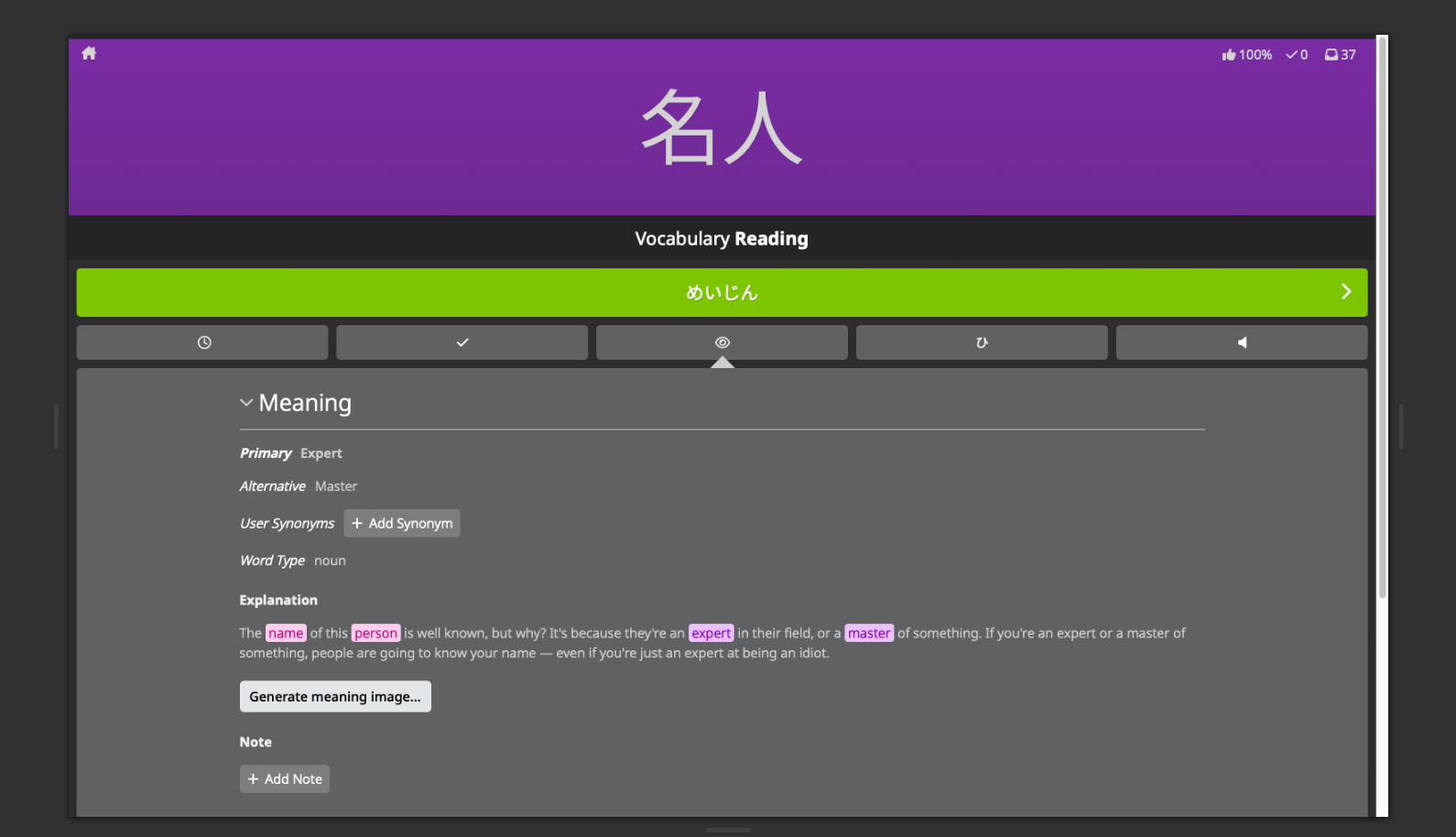
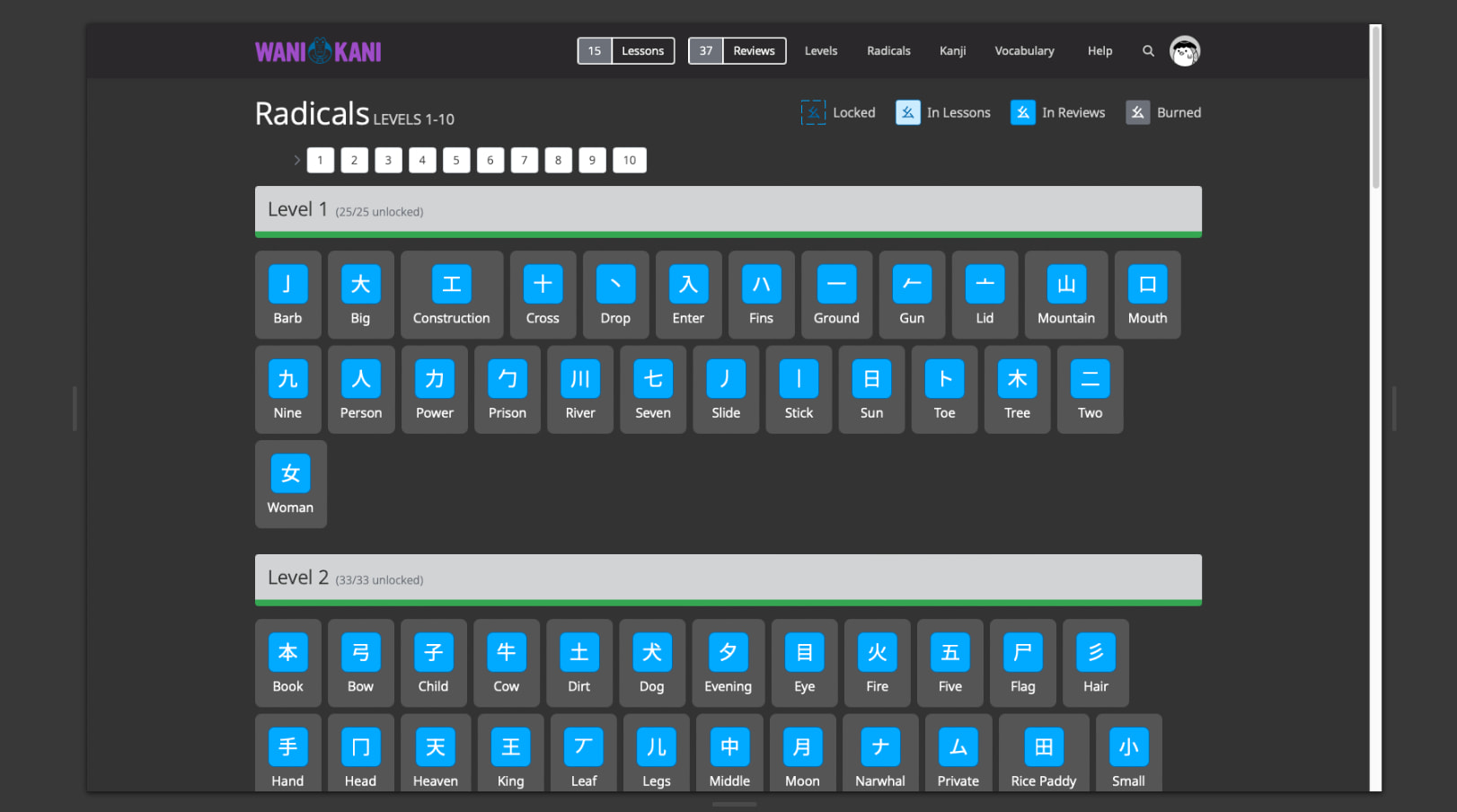
What does it look like? Well, take a look!
On desktop:
On phone:


I have suggestions! I found a thing that doesn’t work!
This is a spare-time project that evolved into a platform-wide dark mode script for WaniKani.
That being said, feel free to leave a comment about bugs, shortcomings, and/or suggestions.
Limitations
- The script targets WaniKani’s official interface only, and is not active on community pages, forums, and similar
- External scripts are not styled, unless specifically stated
- Newest version should be compatible with the following scripts + settings menu:
- WaniKani Ultimate Timeline 2
- WaniKani Self-Study Quiz
- Wanikani Dashboard Progress Plus 2
- Show Total Lesson Count - WaniKani
- Araigoshi’s Wanikani Stage Breakdown
- WaniKani Keisei Phonetic-Semantic Composition
- WaniKani Item Inspector
- Newest version should be compatible with the following scripts + settings menu:
Disclaimer: This script is a spare-time project that is not affiliated with, endorsed by, or supported by WaniKani.


